
Claim a UTAP AI Tool Subscription With an LXP AI Course
How to make a UTAP AI tool subscription claim with an NTUC LearningHub LXP AI course: key form fields, documents, foreign currency and claim status.
Since 1 May 2026, NTUC members have been able to get back up to half of what they pay for an approved AI tool, such as a ChatGPT subscription, within an annual cap, through the Union Training Assistance Programme (UTAP). One condition is that you first complete a UTAP-approved AI course.
An LXP AI course on NTUC LearningHub’s Learning eXperience Platform (LXP), its subscription-based learning app, counts as one, provided your certificate shows at least 2 hours of AI courses on LXP. This guide walks through a UTAP AI tool subscription claim made that way, step by step, with screenshots of the actual claim portal. UTAP is an NTUC scheme, separate from the SkillsFuture, IBF-STS and employer schemes summarised on our funding page.
The rules below come from NTUC’s UTAP page and its official claim guides, checked in September 2026. Where we add our own examples or tips, we say so. The AI tool support runs until 30 April 2028 and the details can change, so check the official page before you file.
Using an LXP AI course for a UTAP AI tool claim
NTUC LearningHub LXP courses on AI count as the UTAP-approved AI course you need for an AI tool claim. As proof, NTUC asks for either the AI Pathway certificate or the LXP AI certificate issued by NTUC LearningHub, showing that you completed at least 2 hours of AI courses on LXP. Completing an approved AI course is the condition specific to AI tool claims; the other conditions are in the eligibility checklist below.
Two rules make this route more useful than it first looks:
- The tool does not have to match the course. NTUC is explicit that any UTAP-approved AI course can be used to claim for any UTAP-approved AI tool. Two hours on AI basics can back a claim for a coding assistant.
- You do not have to claim for the course itself. Filing a UTAP course fee claim for the AI course is not a requirement, so the certificate on its own covers the course requirement.
One detail on the form is easy to get wrong. When your AI course was on LXP, the training provider you select is Employment and Employability Institute (e2i), not NTUC LearningHub. More on that in step 3.
A practical tip from us rather than from NTUC: download your certificate as soon as you finish and keep it with your subscription receipts. You will need it at claim time, which can be months later.
Who can claim, how much, and by when
Eligibility checklist
Before you open the portal, make sure you can tick every line:
- You are an NTUC member paying full membership fees, and your membership is paid up from the day your AI tool subscription starts until the day you claim.
- The tool is on the approved list. In May 2026 NTUC said 21 tools were supported, including coding and agent tools such as Claude Code, Codex and Manus. The live list is on NTUC’s Find a course/AI tool page, and it can change as NTUC reviews suggestions for new tools.
- The subscription is for your own use. It must not be shared with or used by anyone else, and you declare this when you claim. A login you share with family or colleagues does not qualify.
- Nobody else has fully funded it. If your employer or another scheme already paid for the subscription in full, you cannot claim it.
If the tool you want is not on the list, members can propose it through NTUC’s AI tool suggestion form, with a justification of how it supports their work or employability. Submissions are reviewed every three months.
How much you get back
UTAP pays 50% of the unfunded fee you paid, up to an annual cap:
- S$250 a year if you are below 40
- S$500 a year if you are 40 or above
The cap is easy to overlook. It is per calendar year and shared across everything UTAP supports: course fees, assessments and AI tool subscriptions. If you are under 40 and have already received S$200 of UTAP support for course fees this year, only S$50 is left for tools. You can claim for more than one tool, but they all draw on the same cap.
An illustrative example, with our own figures rather than NTUC’s: you pay monthly for a tool billed in US dollars, and your card statement shows S$27.40, S$27.65 and S$27.15 for three consecutive months. You enter S$82.20 as the fee paid, and UTAP reimburses half, S$41.10, provided your cap still has that much room.
Timing: the two windows that matter
Two deadlines apply on top of the eligibility checklist:
- Subscribe within one year after finishing the course. The subscription start date must also fall between 1 May 2026 and 30 April 2028, both dates inclusive.
- Claim within 6 months of the subscription start date. Late claims are rejected.
For example, if your LXP certificate shows you finished on 15 June 2026, a subscription starting on 1 July 2026 qualifies, and you should have that claim in by the end of December 2026.
If you pay monthly, you do not need one claim per receipt. NTUC lets you combine monthly receipts for the same tool into a single claim, provided the periods are continuous and do not overlap. You can also file separate claims for the same tool, as long as each covers a different period. NTUC does not say how the 6-month deadline applies to later months of a running subscription, so file early and check with UTAP@e2i.com.sg before relying on a claim for later months.
How to submit a UTAP AI tool subscription claim, step by step
Screenshots are from a UTAP guide to submitting AI tools claims. The portal may look slightly different by the time you use it.
Have these ready before you start: your LXP certificate, the subscription invoice or receipt, the bank or card statement showing the SGD charge if you paid in a foreign currency, and a copy of your bank statement if no bank account is on file or yours has changed. Every file must be a PDF, JPEG, JPG or PNG under 5MB.
Step 1: Log in with Singpass
Go to utap.ntuc.org.sg/onlineClaim and log in with Singpass. You can also get there from ntuc.org.sg by clicking E-services, then Apply here under UTAP.

Step 2: Choose AI Tools Subscription Claim
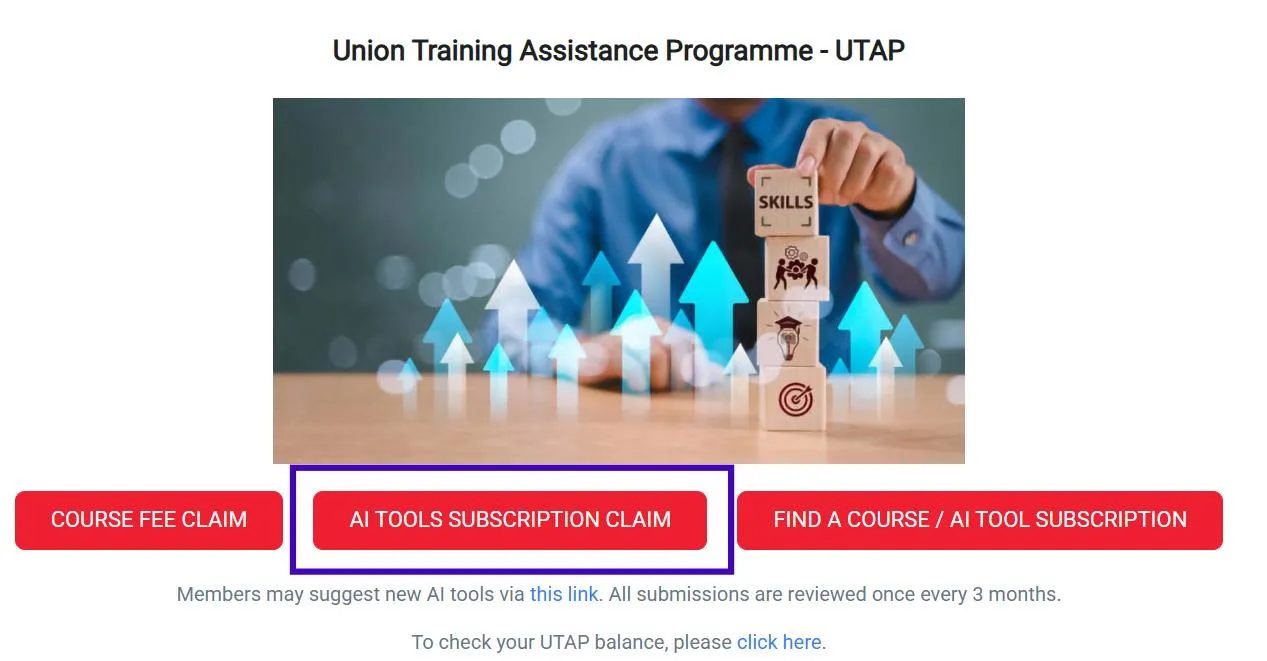
On the UTAP home screen, select AI Tools Subscription Claim. You do not need Course Fee Claim for this. If you are not sure your tool is approved, check under Find a Course / AI Tool Subscription first.
Step 3: Fill in the AI course details
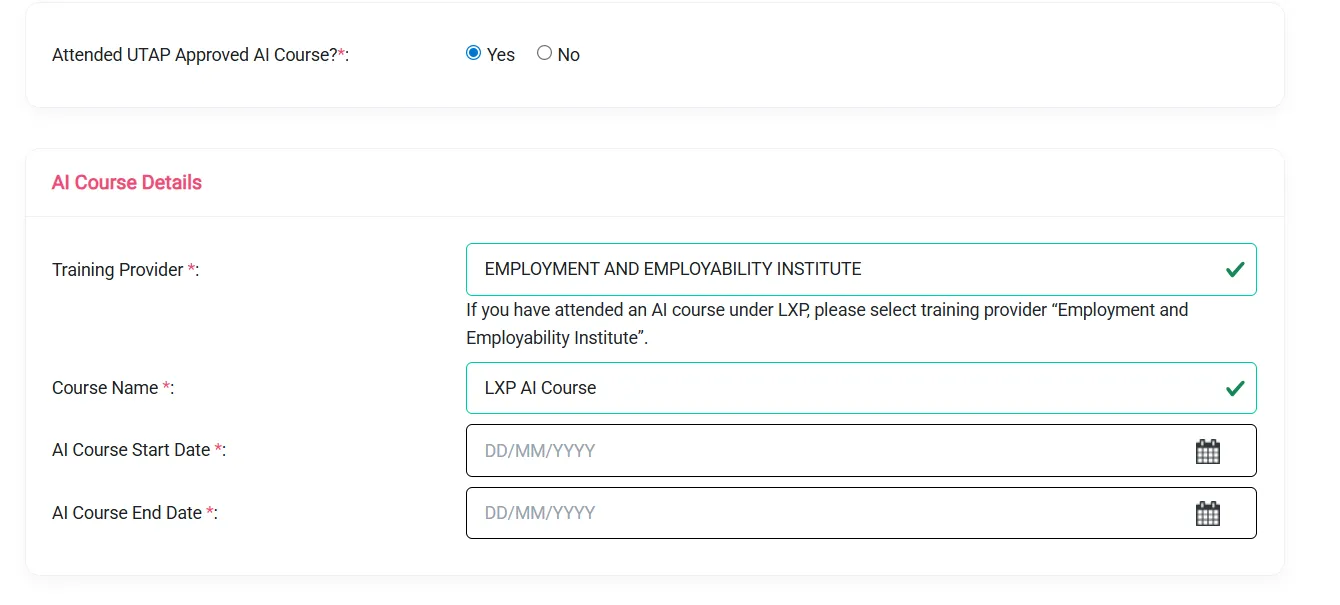
Answer Yes to “Attended UTAP Approved AI Course?”. Selecting No ends the claim there. Then fill in:
- Training Provider: Employment and Employability Institute. The form itself notes that this is the provider to choose if you attended an AI course under LXP.
- Course Name: LXP AI Course, from the dropdown.
- AI Course Start Date and End Date: the claim guide says to use the start and completion dates stated on your NTUC LearningHub LXP certificate.
If you have already submitted a claim for the AI course, the form skips this section and takes you straight to the tool details.
Step 4: Upload your LXP certificate
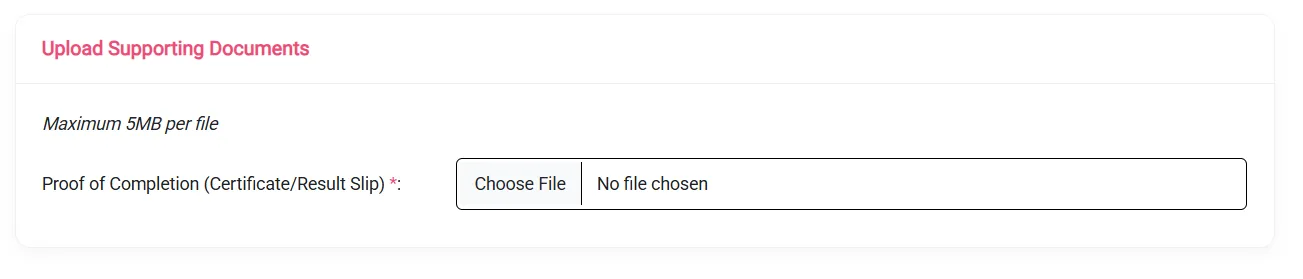
Under Proof of Completion, upload your NTUC LearningHub LXP certificate: the AI Pathway certificate or the LXP AI certificate.
Step 5: Enter the AI tool details and proof of payment
This is the section that decides the amount:
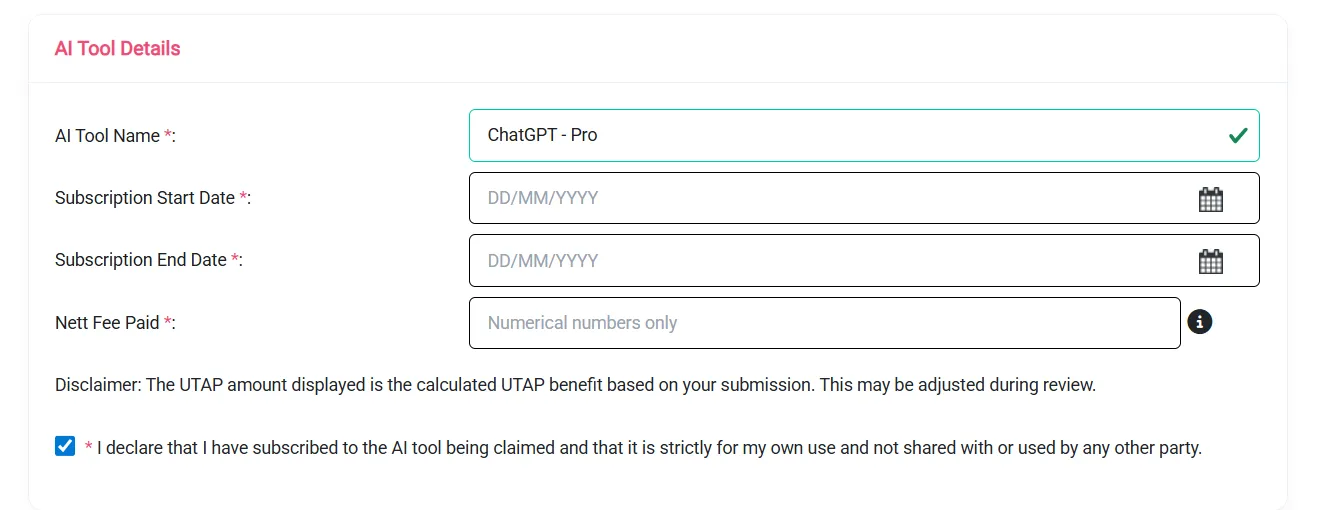
- AI Tool Name: pick your tool from the dropdown, for example “ChatGPT - Pro”.
- Subscription Start Date and End Date: the period you are claiming for.
- Nett Fee Paid: numbers only. If you paid in SGD, enter the exact amount on your invoice or receipt. If you paid in a foreign currency, enter the SGD amount shown on your bank or card statement (more on this below).
- Declaration: tick to confirm the tool is for your own use and not shared with anyone.
The form displays a calculated UTAP amount with a note that it may be adjusted during review, so treat that figure as an estimate rather than a promise.
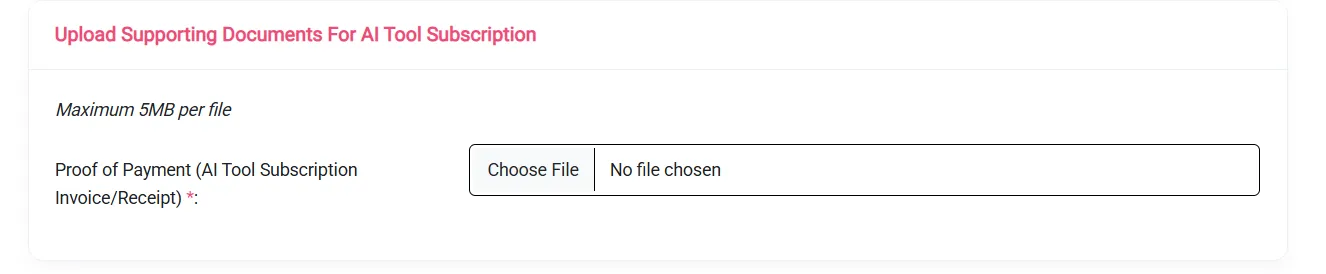
Then upload your proof of payment, the invoice or receipt for the subscription.
Step 6: Check, declare and submit
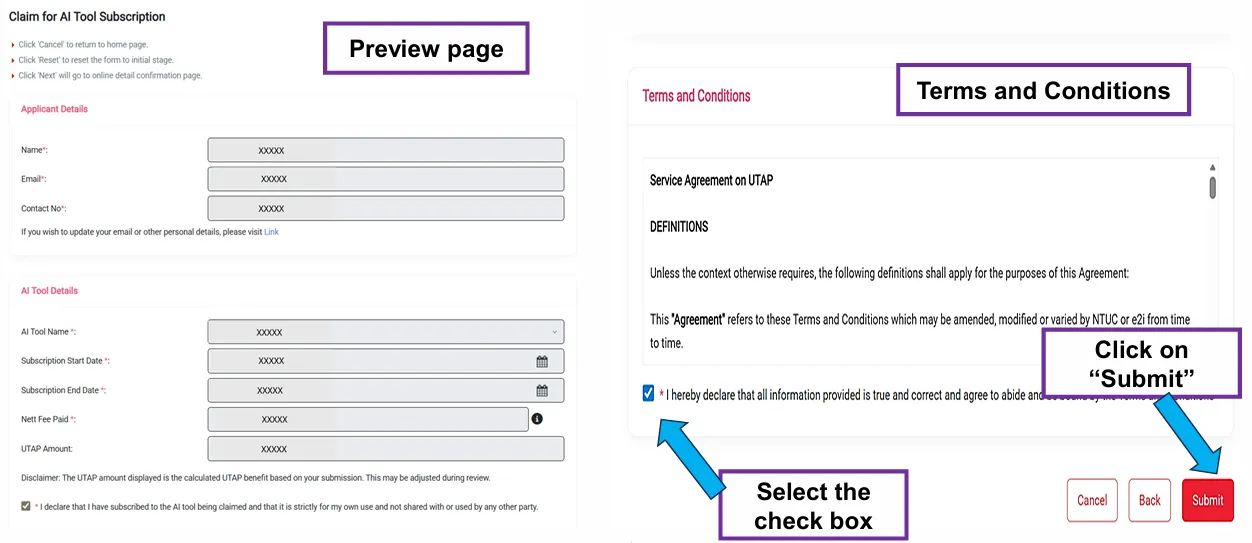
The preview page shows everything you entered. Check the dates and the Nett Fee Paid figure against your documents, tick the declaration that the information is true and that you agree to the UTAP terms and conditions, then click Submit.
If no bank account shows on file, or yours has changed, you will need to update the details and upload a copy of your bank statement. UTAP pays by GIRO and does not credit money into third-party accounts.
Step 7: Save your Application ID
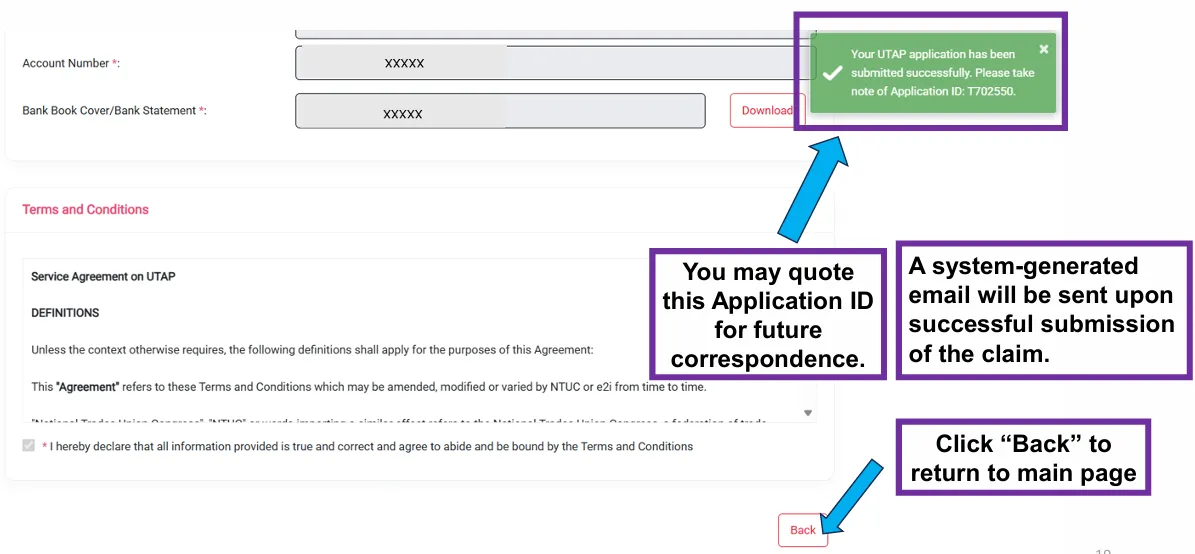
After a successful submission, your Application ID appears at the top right of the page (in the guide’s example it reads T702550), and a system-generated email is sent to you. Note the ID down; it is what you quote in any follow-up.
Making a UTAP claim for a tool billed in a foreign currency
NTUC accepts invoices in foreign currencies, but the amount you enter must be in Singapore dollars and match the figure on your bank or card statement. Not the foreign-currency price on the invoice, and not an estimate from a currency converter.
For a subscription billed in US dollars or any other foreign currency:
- Find the charge on your card or bank statement and note the SGD amount shown there.
- Enter that SGD figure as Nett Fee Paid.
- Upload the statement with the invoice under Proof of Payment. The form shows a single upload field there, so combining both into one PDF under 5MB is the simplest way to do it.
The invoice proves what you bought. The statement proves what it cost you in Singapore dollars. For a foreign-currency subscription, a claim needs both.
How to check your UTAP claim status and payout
To follow your claim, log in to the Membership E-Statement on ntuc.org.sg with Singpass, open the UTAP Balance section and expand it to see your application history. If the claim meets the criteria, NTUC says you should receive the money within 4 weeks of submitting, with an email once it is paid.
The status remarks you may see:
- Pending Approval, Endorsed, Processing L1, Processing L2, Pending Disbursement: the claim is still working its way through.
- On-Hold: outstanding membership arrears or an invalid membership status. The claim stays on hold for 30 days from submission; call the NTUC membership hotline on 6213 8008 to settle arrears, or approach your union for help.
- Disbursement Success: the money has been paid to your bank account by GIRO.
- Disbursement Fail: the GIRO payment did not go through, and the UTAP team may contact you to verify your bank details.
- Auto-Rejected or Rejected: the claim did not meet the criteria or was rejected by a UTAP officer, and the rejection email states the reason. Late filing is one reason NTUC states outright: claims filed more than 6 months after the subscription start date are rejected.
For further clarification on a rejection, or any other UTAP question, email UTAP@e2i.com.sg with your Application ID.
Get value from the tool, not just the rebate
UTAP can pay back up to half of what you spend on a subscription, within your annual cap. It does nothing for how well you use the tool. The members who get the most from it will treat using the tool as a skill to build: learn prompt engineering techniques that carry across tools, build them into real weekly work, and measure the return in hours saved, not in the rebate.
UTAP is a personal benefit for NTUC members, claimed one subscription at a time. Funding training for a whole team works differently, with its own schemes and rules, which we cover in funding AI & automation training in Singapore. If you are planning training for a team rather than for yourself, tell us about your team and we will map the funding routes that apply.